
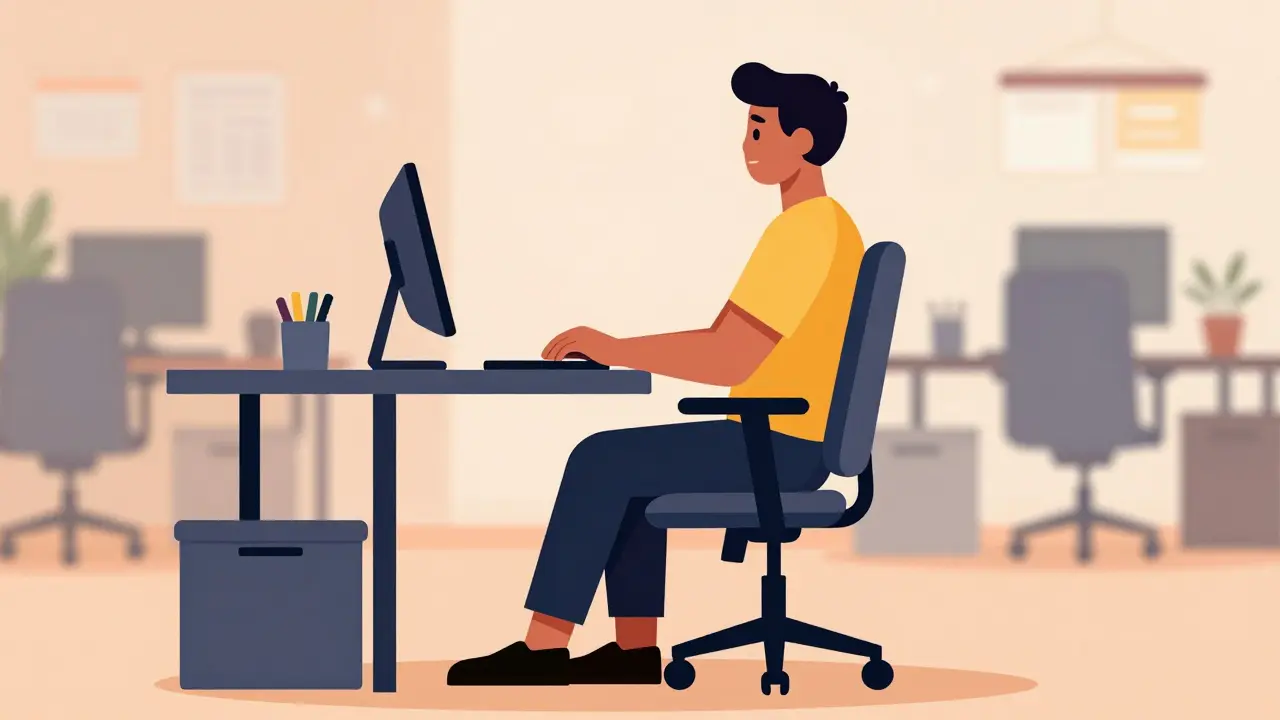
Your shoulders feel tight, your lower back aches after lunch, and your wrists sting by evening. You aren't alone. About 62% of office workers face work-related musculoskeletal issues, often because their desk setup fights their natural anatomy instead of supporting it. Fixing this isn't about buying the most expensive gear; it is about aligning your environment with how your body actually moves.
Understanding Ergonomics for Joints
Ergonomics is the scientific discipline focused on optimizing human well-being and system performance through design. When we talk about joint health, we are looking at preventing damage before it happens. Think of your joints like hinges on a door. If you force them at weird angles every day, the metal bends and wears out faster. Your body is similar. Poor setup forces joints into awkward positions, creating stress that leads to chronic pain.
Data from recent research highlights that proper adjustments can reduce pain intensity by up to 27% across common areas like the neck, shoulder, and wrists. It also boosts productivity. A Cornell University study noted a nearly 18% increase in work output when employees sat in optimized spaces. Your health and your career performance are linked directly to your physical workspace.
The Chair: Foundation of Your Posture
Your seat is where you spend the most time, making it the most critical piece of equipment. Most standard chairs ignore the fact that everyone’s legs are different lengths. If your feet don’t touch the floor, blood circulation slows down, and you end up slouching, which strains your spine.
To set this right, adjust your chair height so your feet rest flat on the ground. Your thighs should be parallel to the floor, with a gap of about two fingers between the edge of the seat and the back of your knees. This typically means raising or lowering the chair until the seat is between 16 and 21 inches off the floor.
| Component | Target Position | Benefit |
|---|---|---|
| Seat Height | Feet flat on floor | Better circulation, less pressure behind knees |
| Lumbar Support | Lower back curve (L3-L4) | Reduces disc pressure by maintaining spinal shape |
| Armrests | Elbows at 90 degrees | Prevents shoulder shrugging |
Lumbar support is equally vital. Without it, your lower back curves inward unnaturally, compressing discs. Look for a chair that allows you to move the support pad up or down so it hits the smallest part of your lower back. Research suggests chairs costing under $200 often lack this adjustability, resulting in significantly higher pain reports compared to ergonomic models with full range adjustments.
Positioning Your Screen Correctly
We often treat monitors like wall art, but they should be placed relative to your eyes. If the screen is too high, you crane your neck forward, loading your cervical spine. Studies show this increases neck loading by 4.5 times normal levels, which accelerates wear on vertebrae.
Place the top of your monitor at or just below eye level. You should look slightly downward, about 15 to 20 degrees, rather than straining upward. Keep the screen an arm's length away, roughly 20 to 30 inches from your face. This distance reduces eye strain and keeps your neck in a neutral line.
If you use a laptop, a dock and external keyboard are almost mandatory. Trying to keep a small screen at eye height usually puts the keyboard impossibly high, forcing you to shrug your shoulders. Separate devices allow independent adjustment.
Keyboard and Mouse Alignment
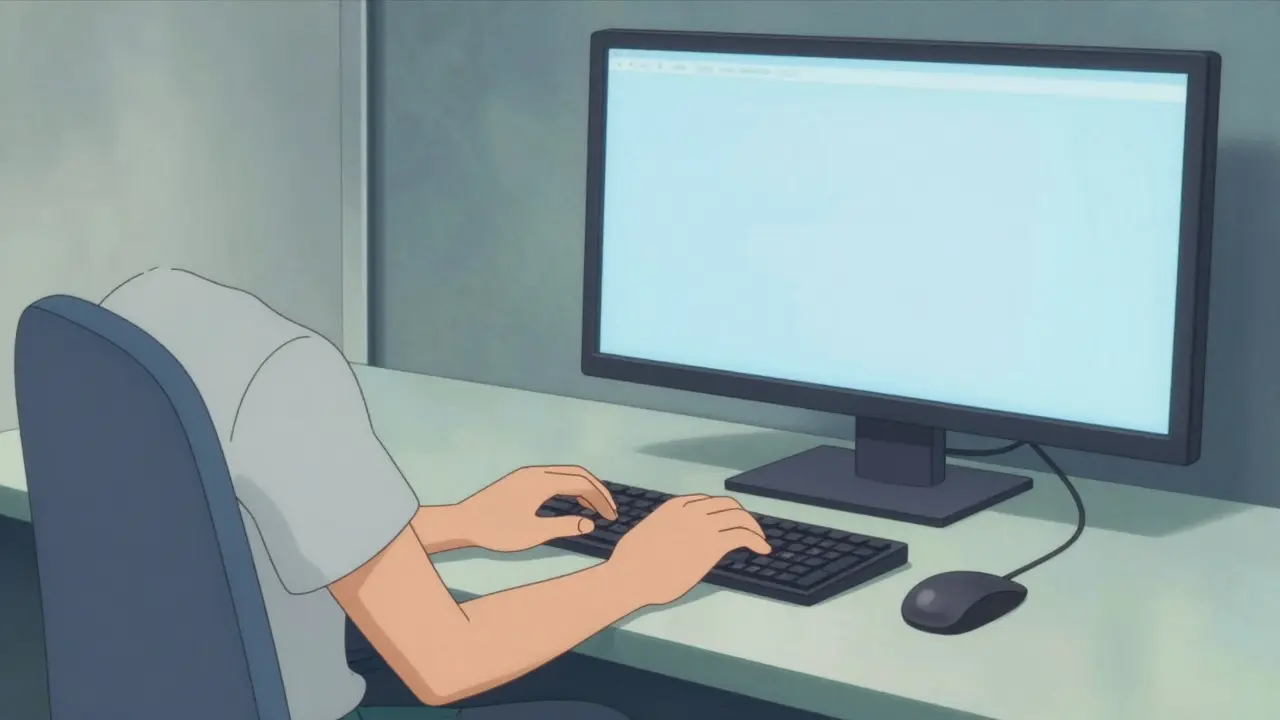
Your hands and wrists carry heavy loads during typing and navigating. Wrists should float straight, not bent sharply upwards or sideways. Keeping elbows close to your body helps maintain a neutral wrist angle. Aim for your elbows to form a relaxed angle between 90 and 110 degrees.
A 2023 survey found that vertical mice reduced immediate wrist pain for 72% of users who switched. These tools encourage a handshake position, removing ulnar deviation (bending the wrist sideways). Standard flat keyboards often force wrists to extend upward, increasing pressure inside the carpal tunnel.
If your keyboard tray tilts, a negative tilt (keyboard sloping slightly away from you) helps keep wrists straighter. Ensure the mouse sits next to the keyboard, within easy reach. Reaching even a few inches further repeatedly adds up to significant muscle fatigue over the course of a day.
Movement and Microbreaks
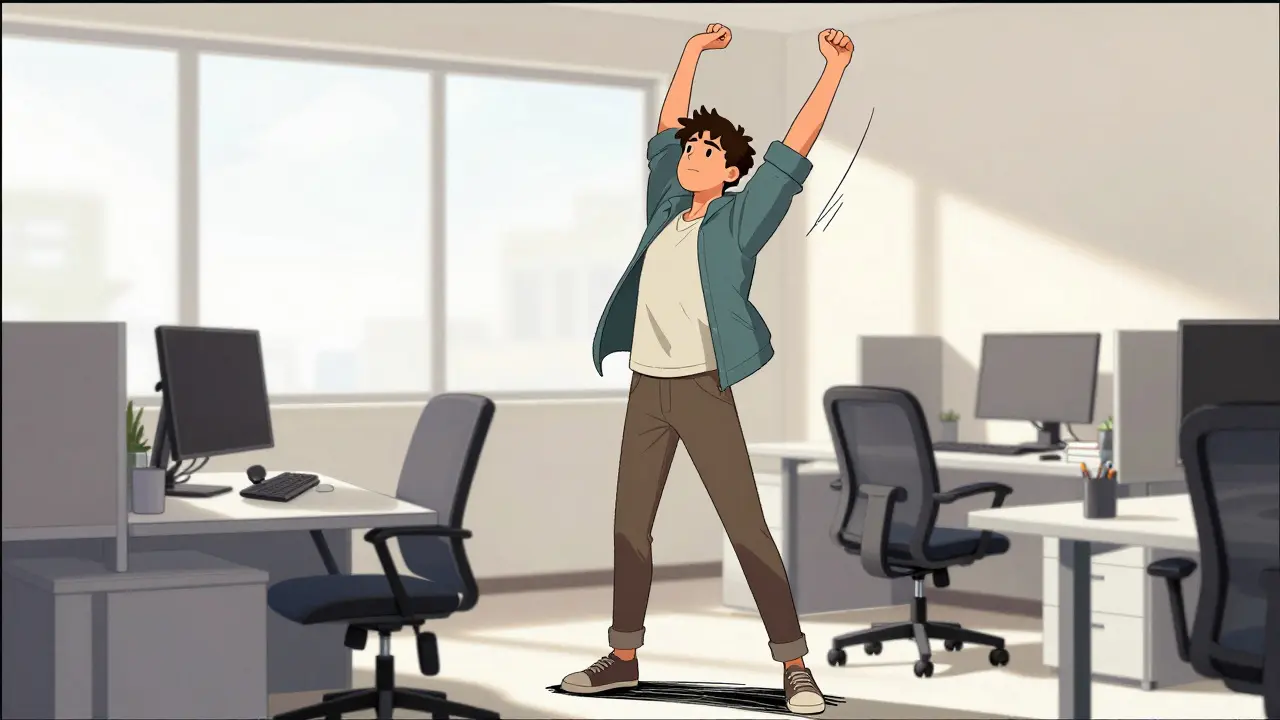
Sitting perfectly still isn't the answer either. Static loading creates tension just as much as bad posture does. The American Physical Therapy Association recommends taking brief breaks every 30 minutes. Stand up, stretch, or walk for 30 to 60 seconds.
This pattern reduces static load on your joints by nearly 30%. Many modern offices are using sit-stand desks to facilitate this. If you have an adjustable desk, switch positions every hour. You don't need to stand for the entire afternoon; alternating prevents the stagnation that causes stiffness.
Technology is catching up too. In 2024, updated guidelines emphasized scheduling algorithms that prompt movement based on activity levels rather than fixed timers. If you are working intensely, your body needs those breaks more urgently than when you are reviewing emails passively.
Investment vs. Value
You might wonder if spending money on gear really pays off. A safety institute calculated that for every dollar invested in ergonomic interventions, workplaces see a return of $4.10. This comes from fewer sick days, lower compensation claims, and sustained worker focus.
While premium setups cost more upfront, they last longer and prevent medical bills. A standard fixed-height desk offers limited relief compared to sit-stand options, which can reduce symptoms by over 30%. Budgeting for a high-quality chair and monitor arm is often cheaper in the long run than treating chronic conditions later.
Common Implementation Mistakes
Even with good gear, errors happen. One frequent issue is placing the monitor exactly at eye level but ignoring the downward gaze requirement. Another mistake involves armrests pushing elbows too far forward, forcing shoulders into a hunched state. Always test your setup by relaxing your shoulders completely.
Some people buy ergonomic accessories but never take time to learn how to adjust them. Video tutorials and printed guides help bridge this gap. Knowing that you can shift your seat depth or lock your lumbar support makes you more likely to use the features correctly.
Frequently Asked Questions
What is the correct chair height?
Your chair should be adjusted so your feet rest flat on the floor and your thighs are parallel to the ground. Usually, this places the seat between 16 and 21 inches from the floor depending on your height.
How far should my monitor be?
Position your screen about an arm's length away, approximately 20 to 30 inches from your eyes. The top of the display should align with or be slightly below your eye level.
Can ergonomic changes reduce pain?
Yes, evidence shows that optimized workstations can decrease pain intensity by around 27% in the neck, shoulders, and wrists by reducing mechanical stress on muscles and joints.
Is a standing desk necessary?
While helpful, a standing desk is not strictly required. Alternating sitting and standing regularly provides benefits. Fixed desks with proper height adjustment and regular walking breaks can achieve similar results.
How often should I take breaks?
Aim for a short break of 30 to 60 seconds every 30 minutes. This microbreak routine helps reset muscle tension and improves circulation throughout the workday.
Arun Kumar
Everyone deserves a workspace that supports their physical health during long shifts.
Rocky Pabillore
One would assume someone reading this understands basic mechanics already. It is clear that many overlook the importance of proper investment in quality hardware.
Russel Sarong
The focus on biomechanics is absolutely essential!!! You cannot ignore the structural integrity of the spine!!!!! Adjustments matter so much!!!
Rod Farren
Biomechanical alignment dictates systemic load distribution. Optimal kinematic chains require precise articulation of joint angles. The lumbar curvature must interface correctly with the support surface.
Jenny Gardner
That is precisely why the lumbar pad needs vertical adjustment capabilities. The L3-L4 segment bears significant axial loading during static sitting. Alignment prevents degenerative disc compression!
Owen Barnes
I beleive teh chair height is teh most imporatnt factor in this recieveable setup process. People often forgat about the feet position on teh ground plane.
Callie Bartley
ugh just buy the expensive stuff and stop whining about it
Eleanor Black
My posture has always been really bad throughout the years of working here. :). I did not realize how much my chair was hurting me until recently. Sitting at a desk all day requires constant attention to detail regarding support. You need to adjust the lumbar region properly every single morning. Without that curve your spine feels like it is collapsing inward slowly. The neck pain comes from looking up too much at the screen. Lowering the monitor helped my cervical muscles relax a lot. My wrists were throbbing when I started typing without floating them. Elevating the keyboard tray made a huge difference in comfort levels. Static loading creates tension just as much as bad posture does. I found that standing for five minutes helps reset everything nicely. Microbreaks are the best solution for preventing chronic issues. Investing in good gear really pays off over the long term. Most standard chairs do not support the natural curves well enough. We should prioritize health over buying cheap furniture today. :)
Cullen Zelenka
You are going to feel so much better once you align everything correctly.
Molly O'Donnell
Proper alignment reduces injury risk significantly.
Christopher Beeson
The decay of the human form through sedentary neglect is a fascinating yet tragic phenomenon. Modern ergonomics fails to address the spiritual cost of industrial confinement.
Sharon Munger
i think we should just focus on fixing the problems now rather than doom and gloom
James DeZego
Using a vertical mouse is highly recommended for reducing ulnar deviation! :) It really helps prevent repetitive strain injuries over time.
Julian Soro
A friendly reminder that small tweaks add up to big relief quickly. Keep experimenting with your setup until it feels right.
Cara Duncan
So happy to see this conversation happening! 🎉 Taking care of our bodies is super important for mental health too! 😊 Don’t forget to stretch! 🧘♀️